Look at the source before changing the output
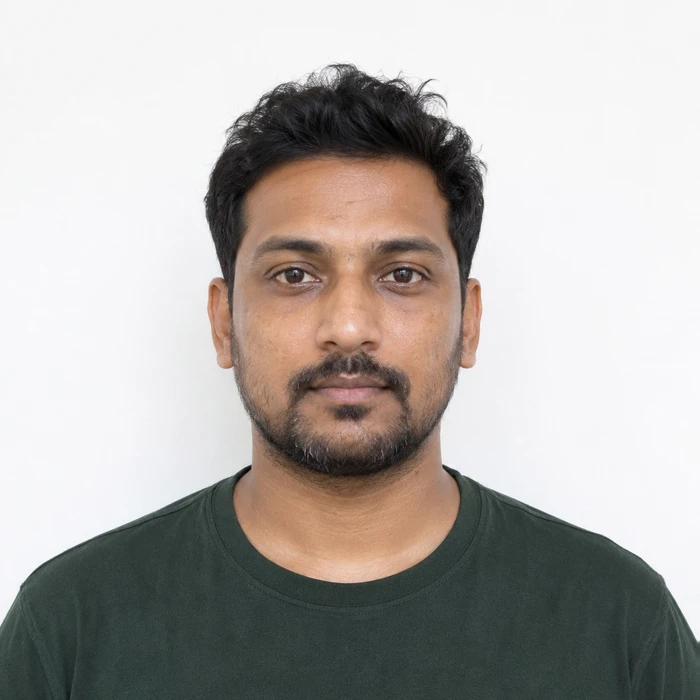
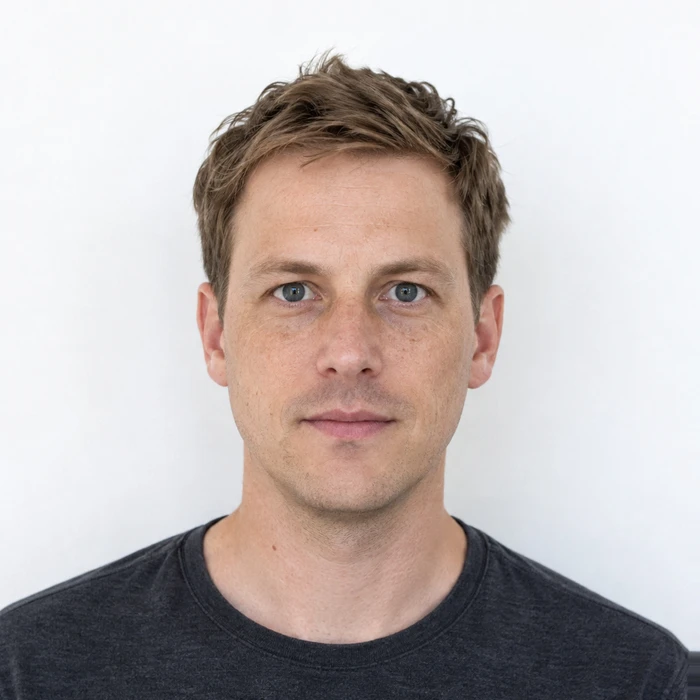
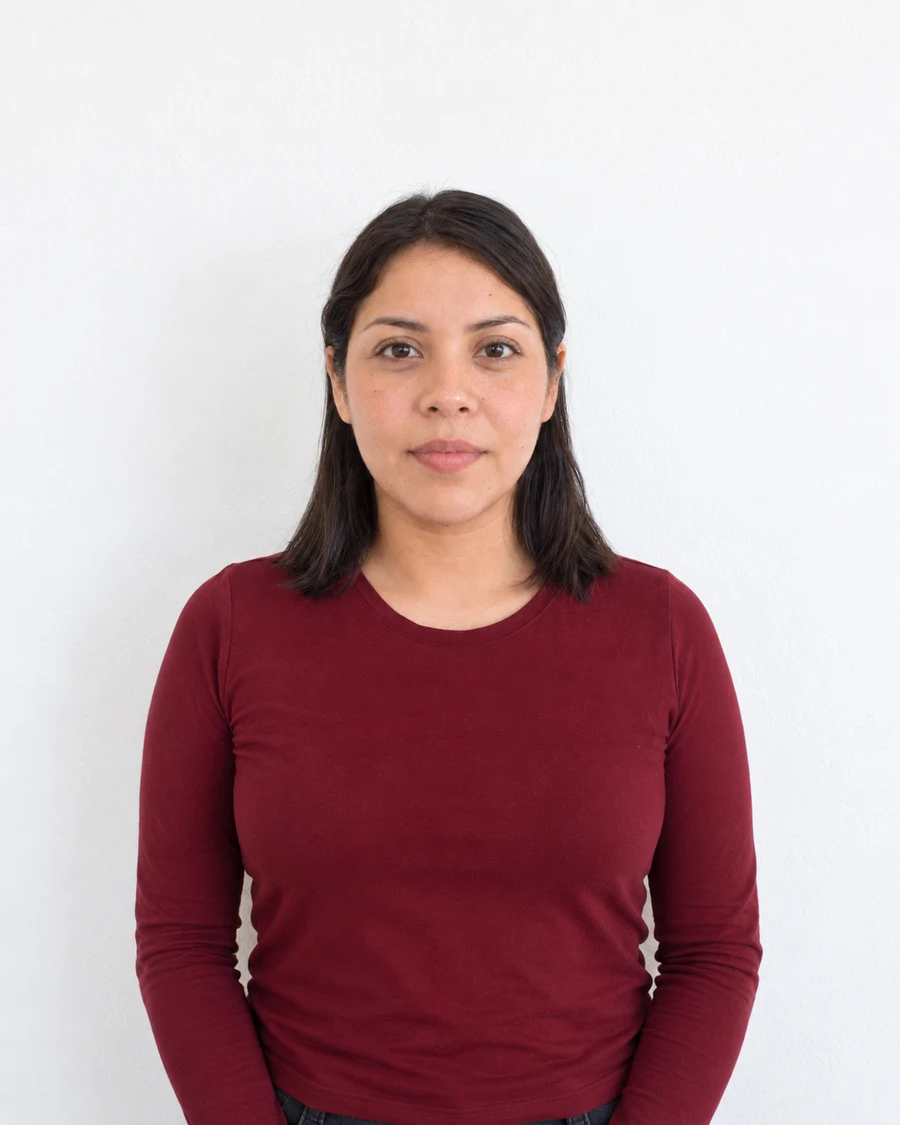
A resize changes how many pixels a file contains. A crop changes which part of the picture remains. Neither can recover a missing part of the head or a sharply captured eye that was never recorded. Begin by inspecting the original at a comfortable zoom.
Keep the original open beside the candidate output. If the source is clear but the export is soft, return to the source. If both look blurred at the eyes, a new photograph is usually the useful next step.
Use the problem to choose the next action
This table is a troubleshooting method, not an approval result. Always compare the eventual photo with the rules for the document and route.
| What you see | What to try |
|---|---|
| Clear source, wrong outer dimensions | Make a permitted proportional crop or resize |
| Correct dimensions, too many KB | Compress a fresh copy within the allowed limit |
| Head cut off in the original | Take a new photo with more room |
| An eye hidden by glare or hair | Change the capture setup and retake |
| Clear file, wrong-size physical print | Correct print scaling and measure a test print |
| Uncertain background-editing rules | Check the document instructions before replacing it |
Avoid inventing missing detail
If the original crop clips the top of the head, adding a blank border creates a larger canvas without restoring the missing head. Generative fill or a face-enhancement tool can invent detail that is not a faithful capture of the applicant. That is a poor foundation for an official photo.
Move the camera back and include the whole head and shoulders in a fresh source image. Keep enough space for the document-specific framing to fit. Retaking early can be less work than trying several exports from an unsuitable source.
Judge the correction at its final use
If the change is to the digital file, reopen that file after download and inspect it. If the change is to a print setting, measure the print after production. A successful save operation only confirms that the file was written.
A technical file check is useful for dimensions, format and byte size. It does not decide whether an authority accepts the expression, capture method or editing. Use those checks together rather than treating any one of them as a complete approval.
Use one change to test your diagnosis
Consider a sharp 1200 × 1200 JPEG that is too large for an upload limit. If the portal permits those dimensions, a byte-size reduction is a reasonable first test. Enlarging or shrinking the face is unrelated to the reported issue and can create a composition problem that was not present before.
Now consider a source where hair reaches beyond the top edge. Reducing its resolution will make a smaller file, but the crop remains incomplete. Those two examples explain why it helps to name the problem before opening an editor. Keep the good properties of the source while correcting only what the application permits.
Sources and further reading
US Department of State passport photos ↗Apple crop and resize an image in Preview ↗Requirements can change. Check the official instructions for your application before submitting.
Merodim is an independent photo-preparation service, not a government agency. Find your document →