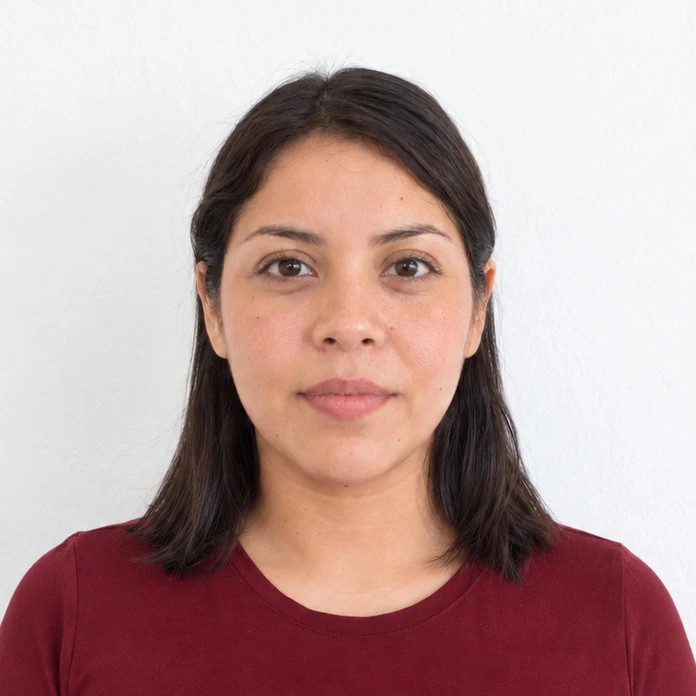

Measure the individual photo first
Use a ruler to check the width and height of one finished image. A sheet being labeled 4 × 6 inches does not prove that each portrait on it is the intended size. The sheet may have been enlarged, reduced or cropped during printing.
Compare the measured result with the file you submitted. If every portrait is consistently too large or small, investigate print scaling. If the outside dimensions are right but the face is too large, the problem is more likely the framing within the image.
Understand fit and fill
A fit option tries to place the whole file inside the printable area. A fill option tries to cover the selected paper and may cut off content where the shapes differ. Neither label guarantees that a prepared sheet will preserve the intended measurements.
Borderless printing may also enlarge the image slightly to cover the paper edges. A preview that hides the border can conceal that change. Review the actual product settings and any crop controls before approving the order.
Match the prepared sheet to the ordered product
Upload a complete print sheet as a single image to a matching print size. Do not select an individual portrait and expect the retailer to infer a multi-photo layout. Conversely, do not submit a whole sheet to a product that expects one cropped passport photo.
If printing at home, inspect the software and printer settings together. Look for scaling or enlargement options and select the intended paper size. A test on ordinary paper can reveal a measurement error, but it is not the final photo-quality print for the application.
Check one copy before making more
Measure a test print and inspect all four edges for clipping. Confirm that the head framing remains correct as well as the outer size. If the retailer cannot preserve the required layout, ask about its dedicated document-photo service.
Do not correct a scaling error by cutting a smaller rectangle through the wrong parts of the face or head. Fix the output settings or source framing and print again. Keep the successful settings with the file if additional identical copies will be needed.
Sources and further reading
Apple Support · Crop, resize or rotate an image in Preview ↗Walgreens Photo · Prints and enlargements ↗Requirements can change. Check the official instructions for your application before submitting.
Merodim is an independent photo-preparation service, not a government agency. Find your document →