Cropping and resizing solve different problems
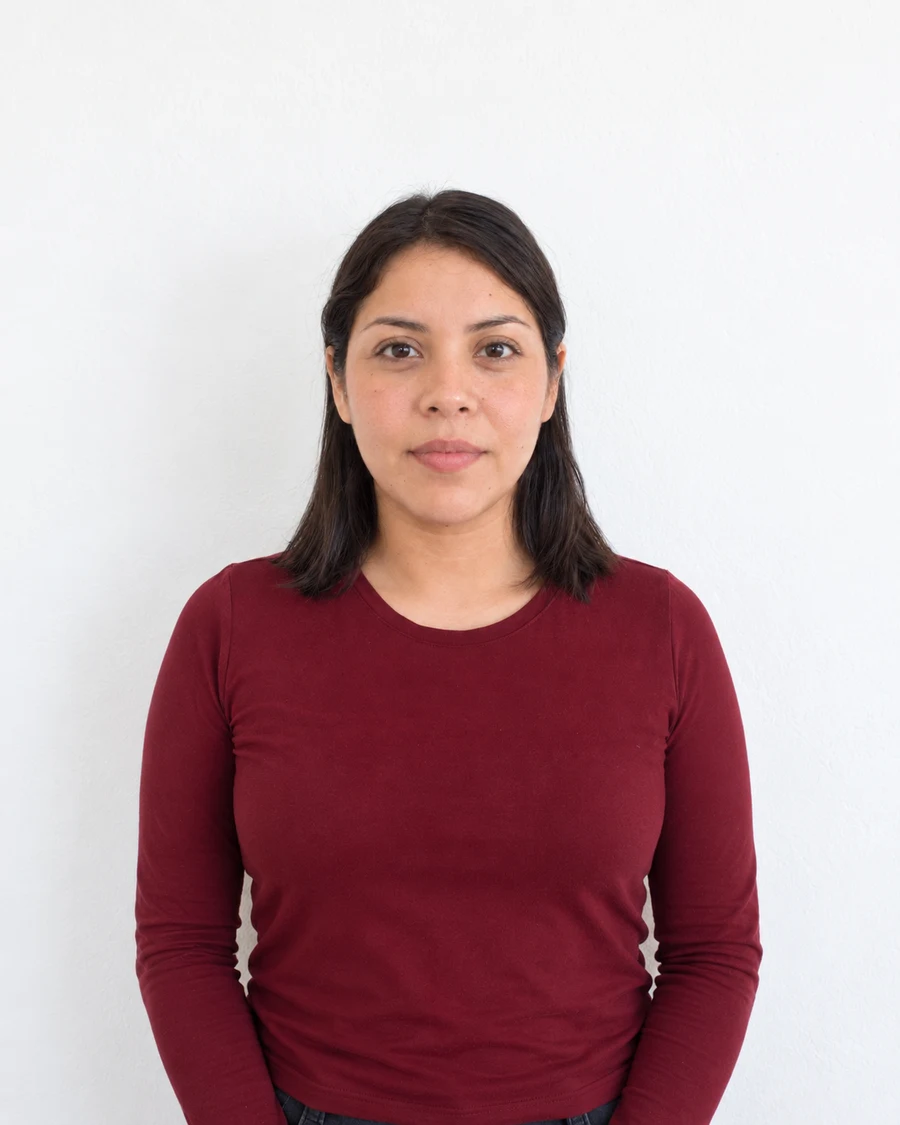
Cropping chooses which part of an image to keep. Resizing changes the number of pixels used to represent that area. If you need a square photo from a rectangular source, the first task is choosing a square area, provided the application permits that crop.
Changing a 1200 × 1600 portrait directly to 600 × 600 without preserving proportions squeezes its height relative to its width. The output is square, but the face is no longer the same shape. A dimension check may miss what a side-by-side comparison makes obvious.
Work through the shape first
For that 1200 × 1600 example, you might select a 1200 × 1200 square from the original, positioned to preserve the required head framing. Then reduce that square to 600 × 600. Both sides are scaled by the same factor, so the facial proportions remain unchanged.
This is an example of the sequence, not a crop prescription. A square selection must still leave the correct room around the head. If the face does not fit the intended frame, choose a different suitable crop or a wider original rather than forcing the dimensions.
Keep proportional scaling enabled
Image editors often offer a linked-width-and-height or proportional-scaling control. Apple’s Preview documentation describes scaling proportionally when adjusting image size. Check that changing one dimension produces the expected other dimension before applying the change.
If the application gives both minimum dimensions and an aspect ratio, satisfy those requirements together. Do not assume that typing one minimum value and leaving an unrelated height is sufficient. Read the final width and height from the saved file.
Compare before and after
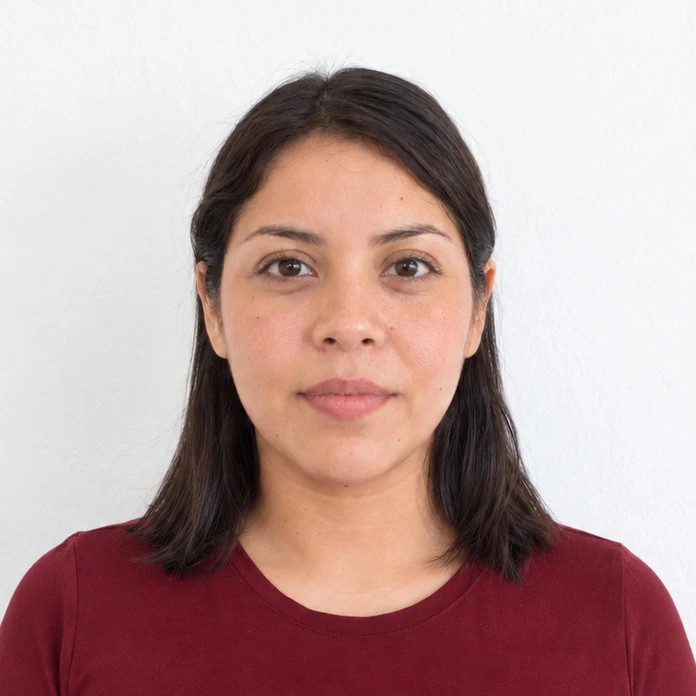
Open the source and the resized copy beside each other. The crop may be different, but the relative width of the face, eyes and mouth should not change. Look for an unnaturally narrow or wide head as a sign that the dimensions were changed independently.
Finally, check sharpness at ordinary viewing size. Reducing a large original can produce a clear small output, but enlarging a tiny crop cannot recover missing detail. Keep the original file so you can prepare another size without resizing an already reduced copy.
Sources and further reading
Apple Support · Crop, resize or rotate an image in Preview ↗Requirements can change. Check the official instructions for your application before submitting.
Merodim is an independent photo-preparation service, not a government agency. Find your document →