
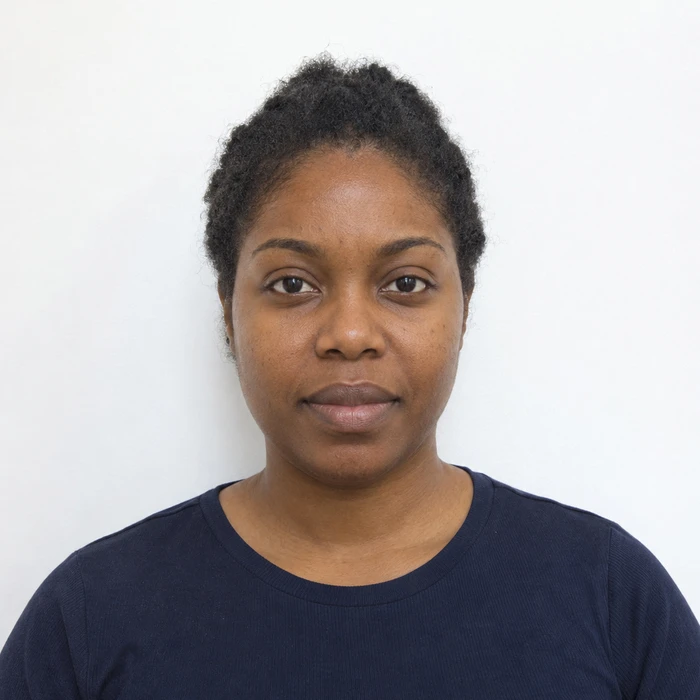
A bright screen can hide a dark photograph
A display emits light, while a print is viewed by reflected light. If the screen is unusually bright, the photograph may appear well lit there but look too dark on paper. Check the image on a normally adjusted display before changing the file.
View the print in even, ordinary light rather than under a strongly colored lamp. Look for lost detail around the eyes or a clear color cast. A small difference between screen and paper is different from a print that no longer represents natural skin tone.
Check the printing path before editing the face
Confirm the printer’s selected paper type and the product you ordered. A setting intended for another paper can affect the result. If printing through a shop, ask whether automatic image corrections were applied and whether the submitted file was changed.
Adobe’s print guidance also distinguishes between color managed by the application and color managed by the printer. Competing adjustments can produce unexpected results. If you use a managed workflow, follow its instructions rather than enabling every available correction.
Use a small test to isolate the problem
Print one copy from the saved final file and compare it with the original. If possible, compare a second known photograph through the same setup. When both look unusually dark or tinted, investigate the output settings before editing the document portrait.
Do not repeatedly alter skin color to compensate for an unidentified printer issue. Each revision makes it harder to know whether the file or the print process is responsible. Keep the unchanged source and label any test exports clearly.
Check suitability as well as color
A print with pleasing color can still have the wrong dimensions, visible streaks or an unsuitable paper surface. Measure the photo and inspect it for defects before submitting. Check that the particular document allows the paper and printing method used.
If the equipment cannot produce a clear, faithful result, use a provider able to meet the document’s specification. Keep the successful digital file for additional copies, but check each batch rather than assuming the same order settings always produce an identical print.
Sources and further reading
Adobe · Color management across screens and printers ↗Adobe · Print with color management ↗Requirements can change. Check the official instructions for your application before submitting.
Merodim is an independent photo-preparation service, not a government agency. Find your document →