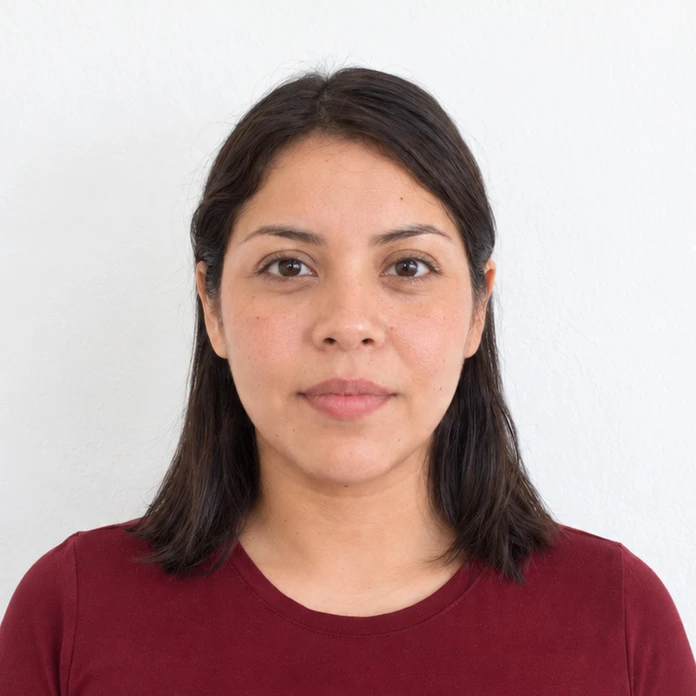
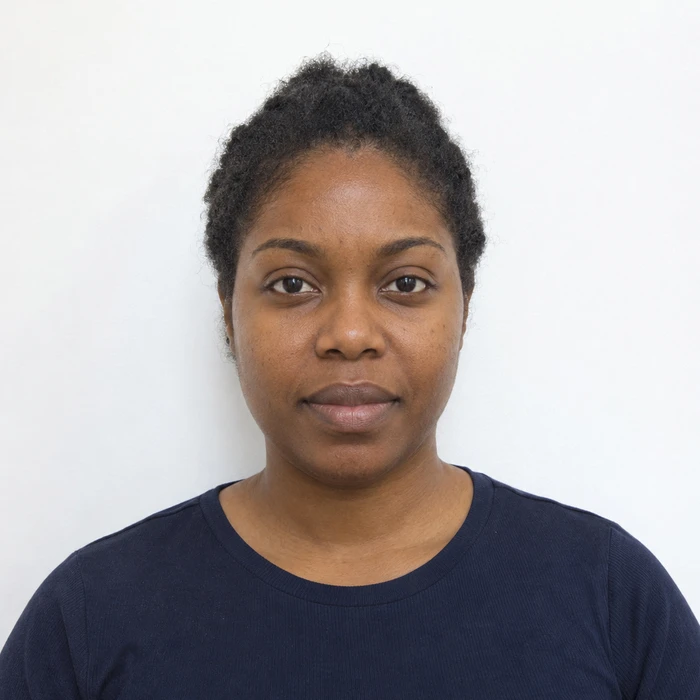
Choose an A4 layout rather than enlarging a small sheet
A4 paper measures 210 × 297 mm. A 4 × 6 inch layout is a different canvas. Enlarging that small sheet to fill A4 enlarges every portrait on it. Choose a layout designed for A4 when that is the paper you plan to use.
Keep the individual photo file as well. It is useful for supported digital uploads, while the multi-photo sheet is designed for printing. Do not upload the entire sheet to a field expecting one applicant’s portrait.
Match the paper type to the document
A4 describes paper dimensions, not whether the material is suitable photographic paper. Ordinary copier paper and A4 glossy photo paper can be the same outer size but produce very different results. Check your document’s required finish and print quality.
Also check the printer’s supported media weight and the paper maker’s compatibility instructions. A photo sheet intended for inkjet printing should not be put in a laser printer unless its manufacturer specifically says it is suitable for that process.
Print at actual size and measure one result
Select the intended A4 paper size and a setting that preserves the layout’s physical dimensions. Labels vary across applications, so look for actual size or 100% rather than fit to page. Check that margins do not cause an automatic reduction.
Print one test sheet, then measure a portrait’s outer width and height with a ruler. For a 2 × 2 inch output, the mathematical measurement is 50.8 × 50.8 mm. That outer measurement does not establish that the face itself has the right framing.
| Setting | What to verify |
|---|---|
| Layout | The download was made for A4 |
| Paper | Photo paper suitable for the document and printer |
| Scaling | The layout stays at its intended physical size |
| Quality | Portrait detail is clear in the actual print |
| Cutting | Each cut follows the intended photo edge |
Cut after the sheet is dry and verified
Let the print dry or settle according to the paper and printer instructions. Handle it by the edges and use a ruler or cutter to follow the photo boundaries. Check the first cut photo before cutting the remaining copies.
If the portraits are too small or too large, correct the scaling and reprint. Trimming a larger photo down to the outer size can create the wrong composition. Save the working print settings with your layout for any additional copies.
What if the print dialog offers only fit or fill?
Look for an application that can preserve physical dimensions rather than forcing the image to fill the selected page. A PDF layout designed for a paper size and a JPEG displayed by a photo viewer can be handled differently. Consult the program’s print instructions and use a test sheet to verify the result.
Borderless printing also deserves a check. Some printers enlarge the image slightly to avoid leaving a white edge. That can be useful for ordinary photos but can change the measurements of a multi-photo sheet. Turn off enlargement where possible, or choose a layout and print mode that you can measure at the intended size.
Sources and further reading
US Department of State passport photos ↗Apple crop and resize an image in Preview ↗Requirements can change. Check the official instructions for your application before submitting.
Merodim is an independent photo-preparation service, not a government agency. Find your document →